What I learned adapting two iPhone apps to iPhone Duo
On Monday, October 19, I adapted two of my apps, Weeks Left and Penlock, to the new iPhone Duo. Both were portrait-only SwiftUI iPhone apps. I ran one Claude Code session per app with the same prompt: make the app work on iPhone Duo, test it in the Duo simulator, and check every screen. Both updates went to App Store review that evening.
Most of the layout fixes were small. Testing took much longer, because the hard part was getting a foldable phone to fold inside a simulator. Everything below is also in a public agent skill you can install.
One app, four windows
The Duo has two displays. Closed, you use the outer display, which is a bit wider than a regular iPhone. Open, the inner display is close to a small iPad in landscape. Each one can be turned, and folding or unfolding resizes the running app, so any size you read at launch goes stale.
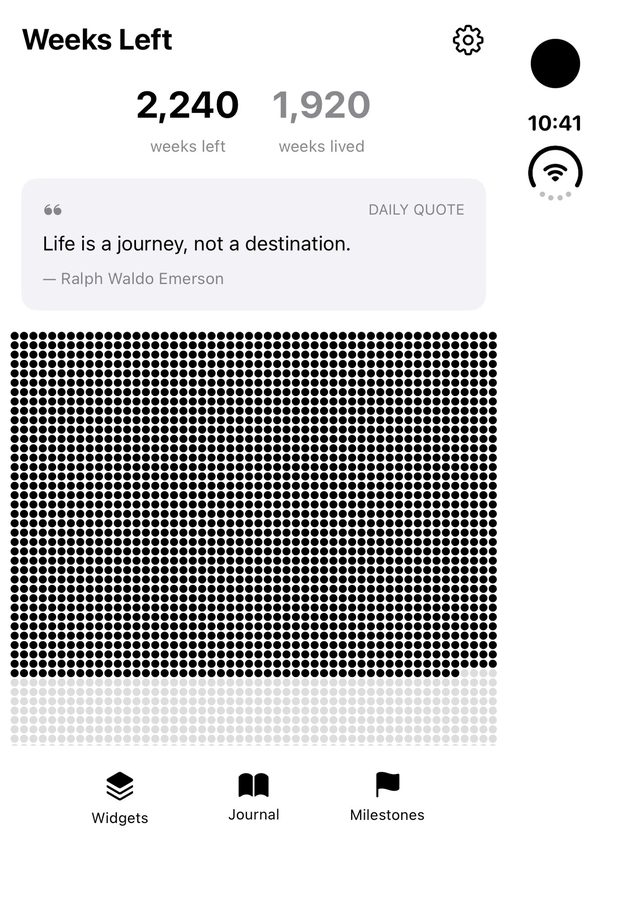
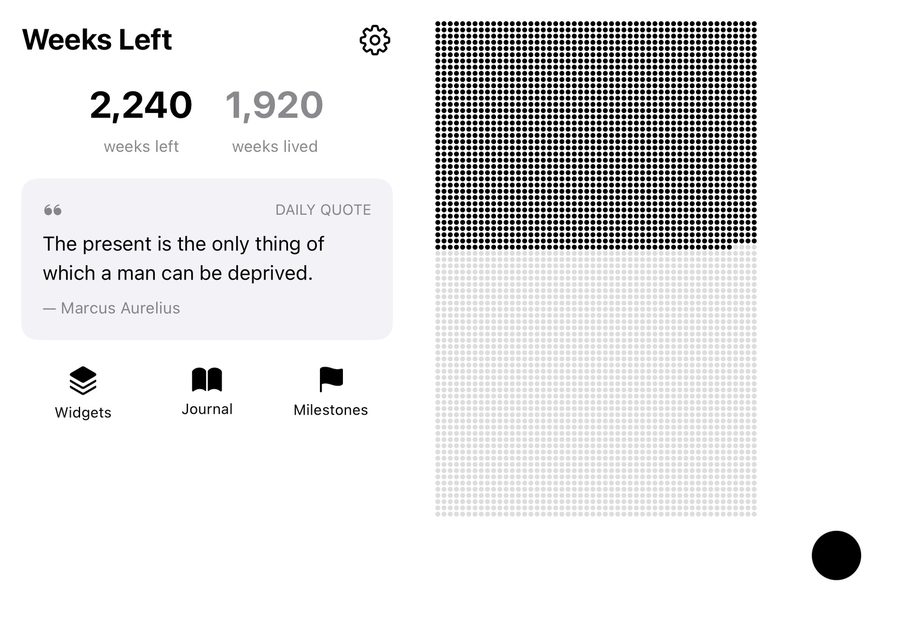
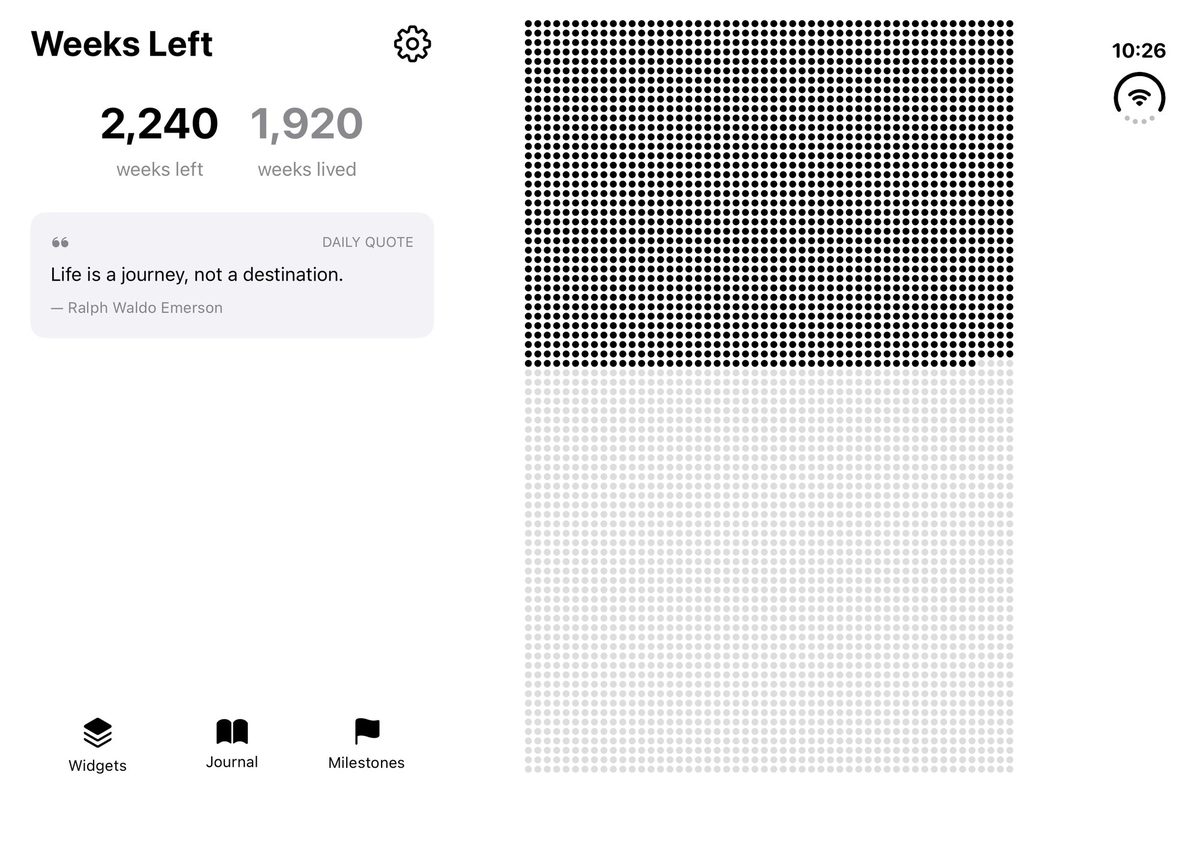
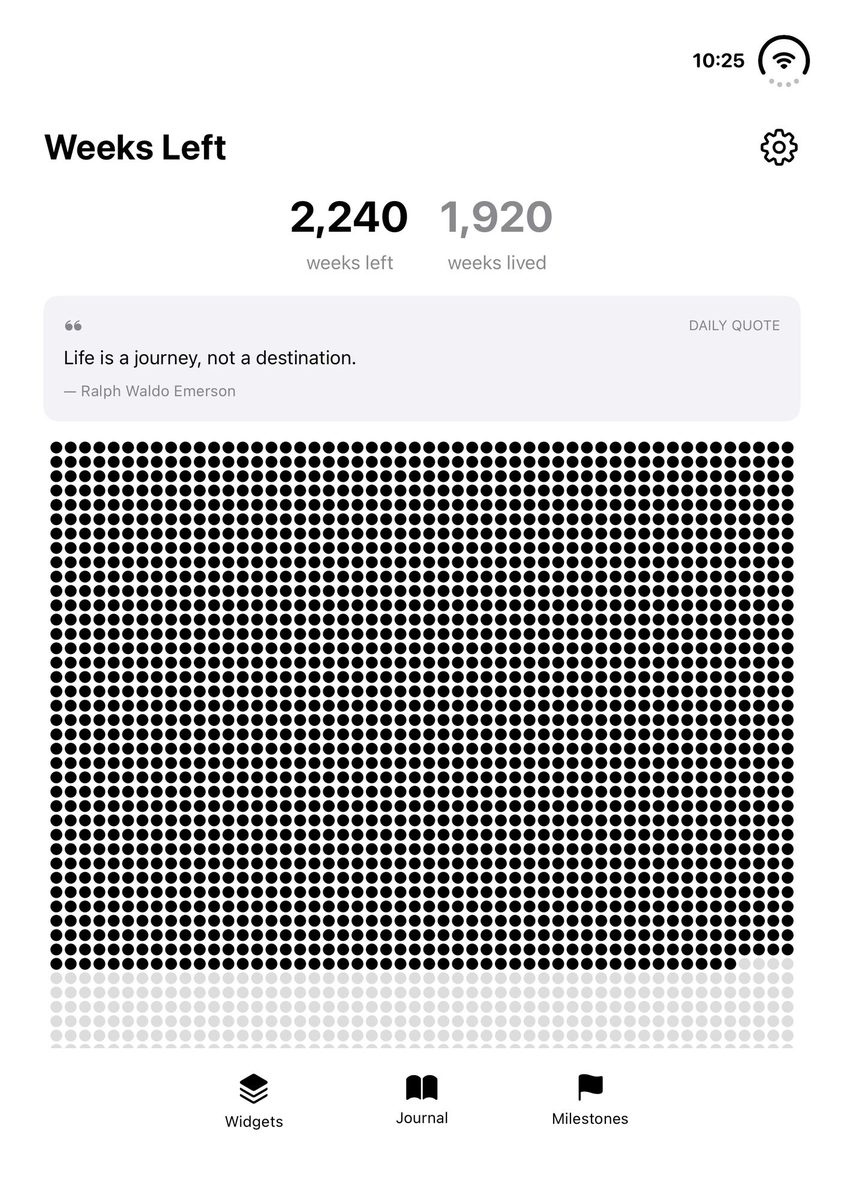
| Pose | Window (pt) | Size class (w / h) |
|---|---|---|
| Closed | 466 x 678 | compact / regular |
| Closed, turned | 678 x 466 | compact / compact |
| Open, or Book (partially open) | 951 x 669 | regular / regular |
| Open or Book, turned | 669 x 951 | regular / regular |
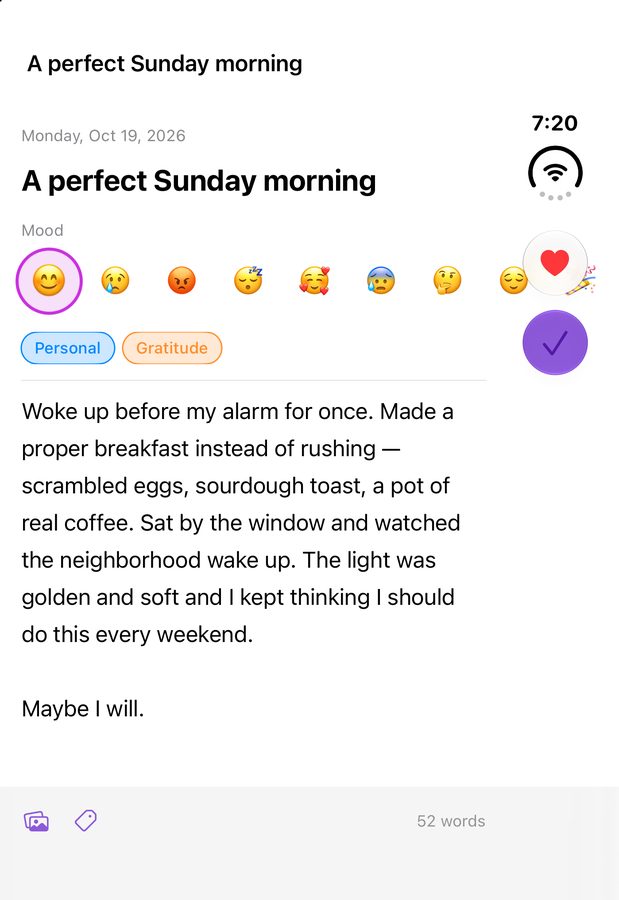
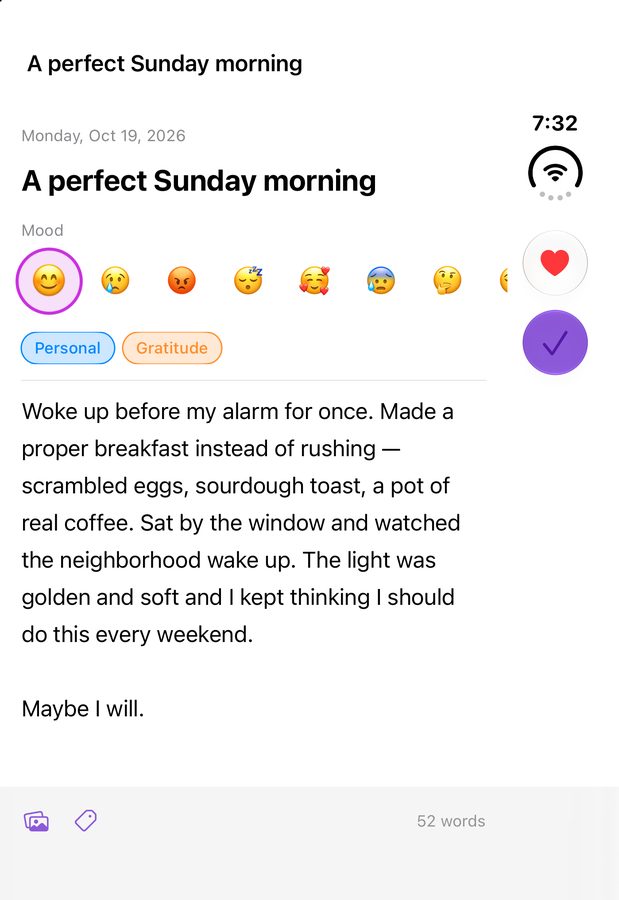
On the closed display, the status bar sits on the right edge, not the top. You can see the time and the Wi-Fi icon on the right in the closed screenshots.
What your app gets also depends on the SDK you build with:
- iOS 26 SDK or earlier: the app isn’t resized. When open, it sits in a 375 x 667 pt window in the middle of the screen with empty space around it.
- iOS 27.0 SDK: the app resizes, but stays clear of the status bar edge.
- iOS 27.1 SDK: edge to edge on both displays. Toolbars and tab bars become a vertical rail on the trailing edge when the phone is closed, and when it’s open in a portrait-width layout.
Layout fixes
Allow landscape
If UISupportedInterfaceOrientations lists only portrait, the turned poses don’t work. Adding the two landscape orientations fixes that, but it also turns on landscape for every iPhone, so check a regular iPhone in landscape before you ship.
Pin the main action, and what the user is deciding on
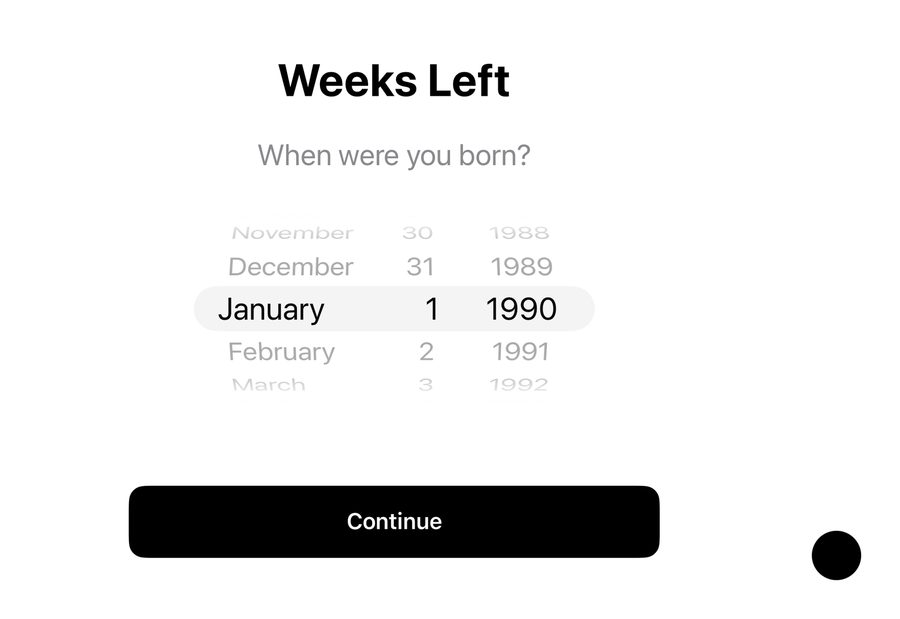
Onboarding and paywall pages built from a VStack and Spacer()s look fine on a tall phone. On the Duo they clip, and at 466 pt tall (closed and turned) the Continue button can end up off screen. The fix is to let the content scroll and pin the main button to the bottom.
Pinning only the button isn’t enough. On the paywall below, the price stayed in the scrolling area and ended up half hidden behind the buttons. Moving it into the pinned area fixed it. Anything the user is deciding on belongs next to the button that confirms it.
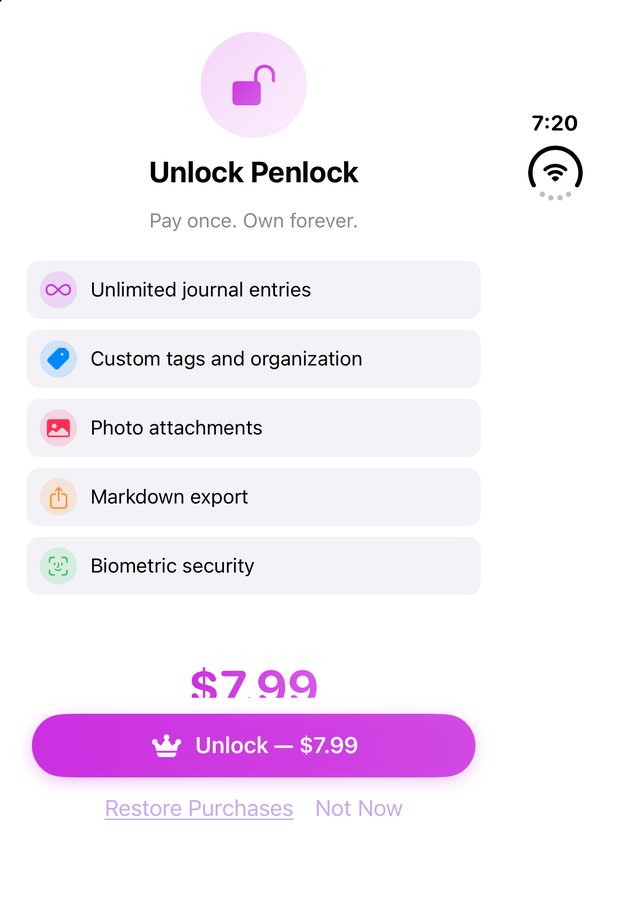
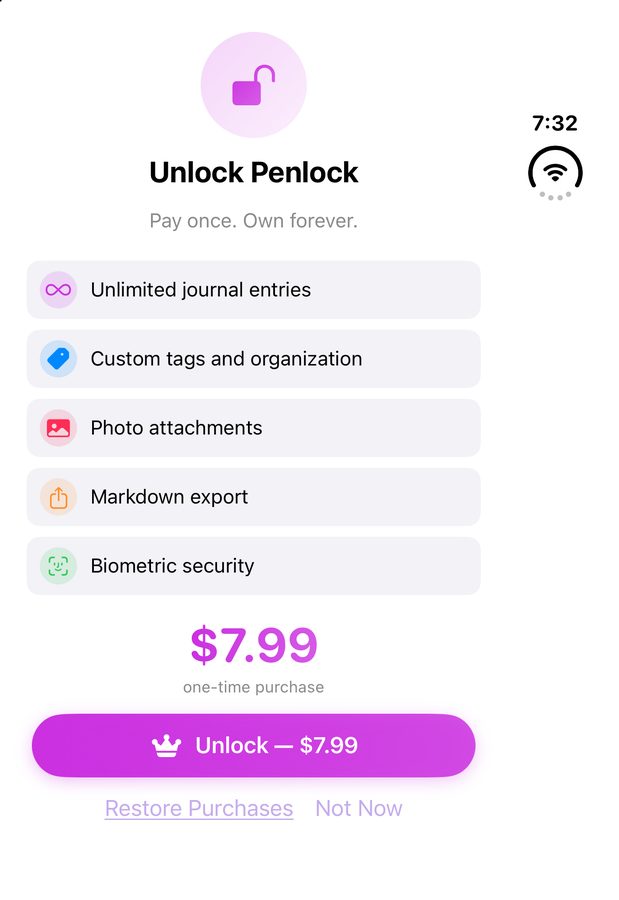
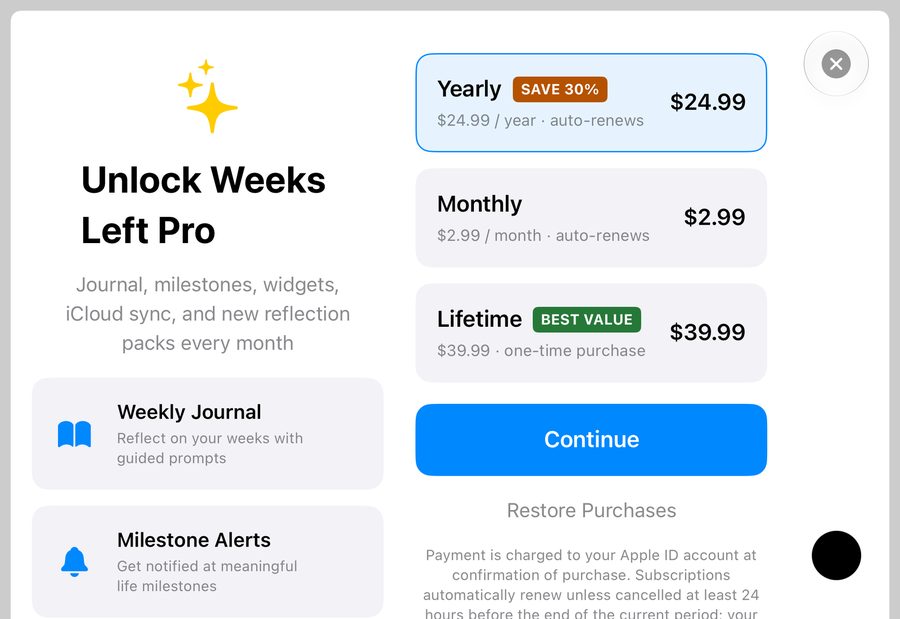
When the window is short and wide, use the width. Here, onboarding keeps its Continue button in view, and the paywall puts the plans next to the features.
Give every toolbar button a symbol
The 27.1 vertical rail only shows items with a symbol, so a text-only Done or Cancel button needs one:
Button("Done", systemImage: "checkmark") { dismiss() }
Button("Cancel", systemImage: "xmark") { dismiss() }
Keep horizontal rows out from under the rail
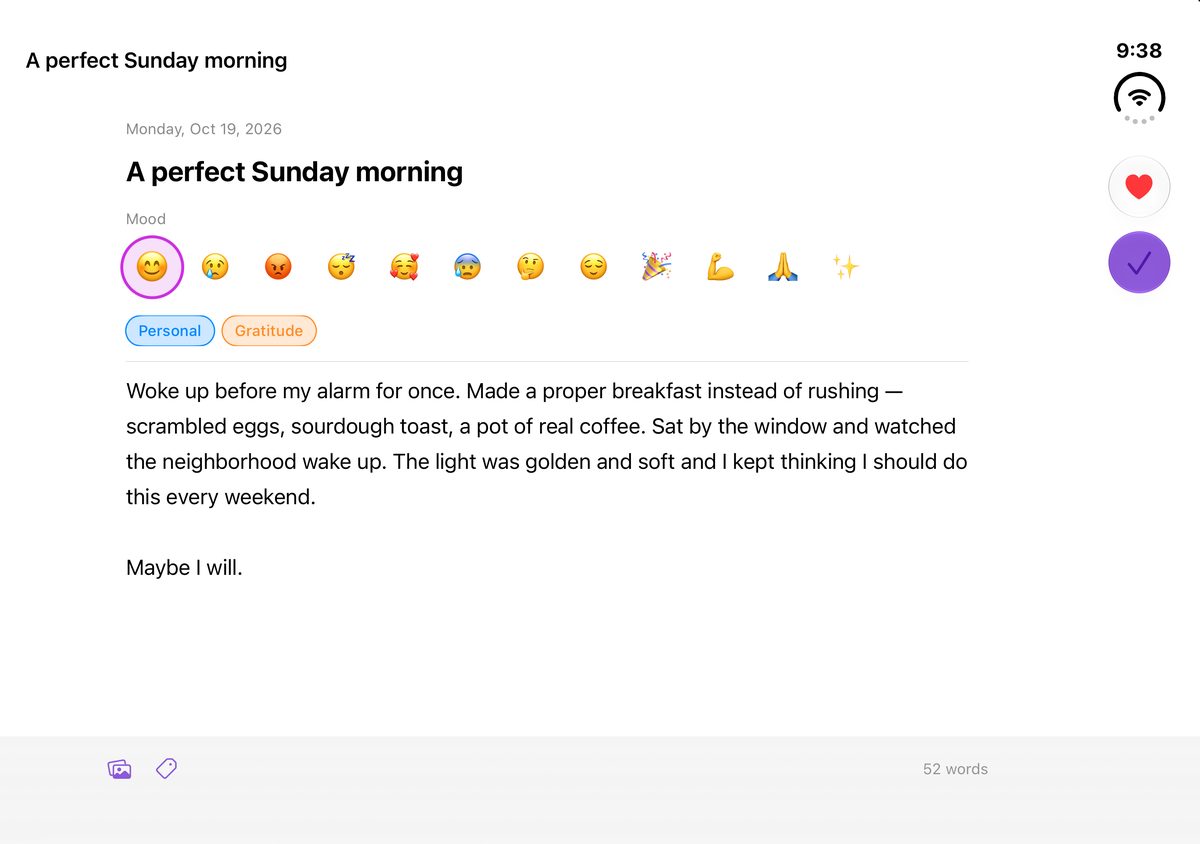
A horizontal ScrollView inside a vertical one draws into the safe area. On the closed display, this mood picker scrolled under the rail, behind the heart and the checkmark. Adding .clipped() to the horizontal ScrollView kept it out.
Use size classes, not device checks
An isIPad idiom check, or anything that reads UIScreen.main, gives the wrong answer on the Duo. horizontalSizeClass == .regular now happens on an iPhone, so size classes and the space you actually have are the right tests. For the system light or dark style, read the window scene’s traits instead of UIScreen.main.
Go side by side when wide or short
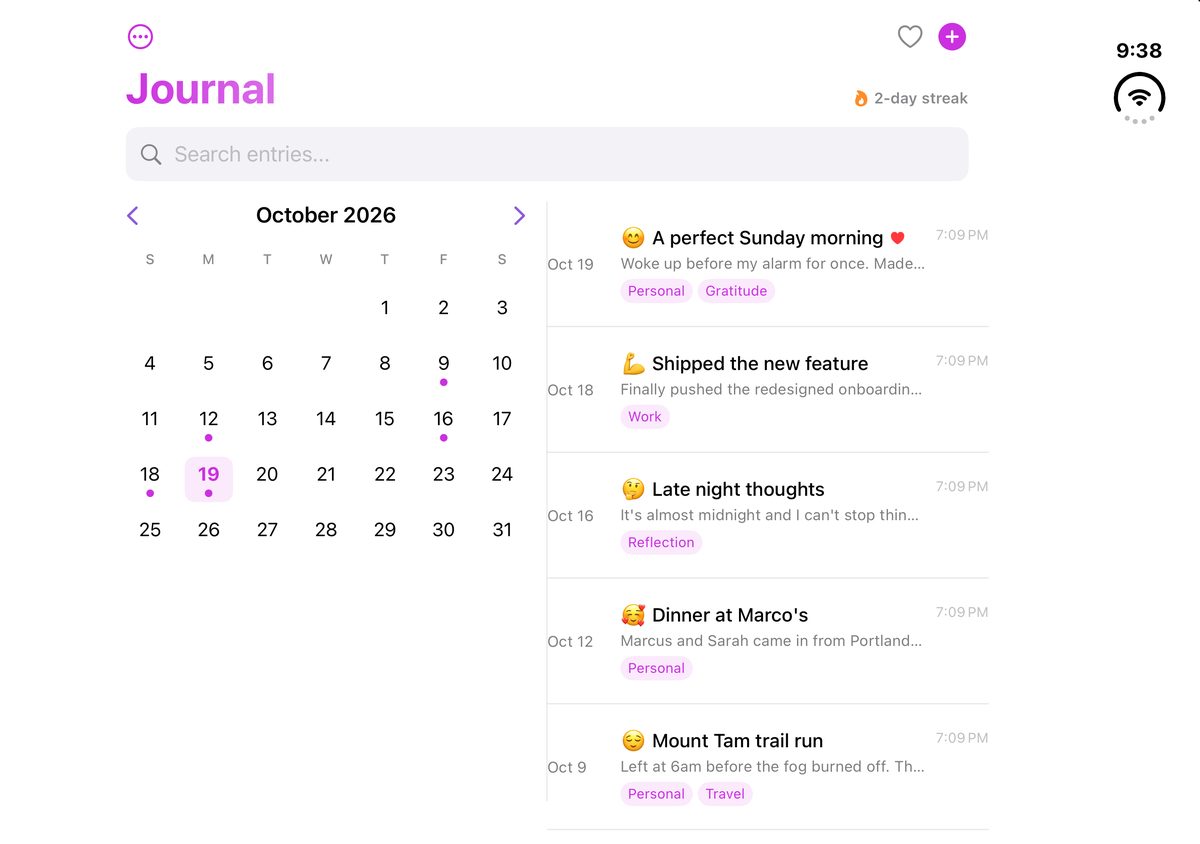
A layout that stacks one thing above another (stats above a grid, a calendar above a list) leaves almost no room in a 466 pt tall window, and wastes space at 951 pt wide. Putting the two parts side by side when the width is regular or the height is compact fixed both.
@Environment(\.horizontalSizeClass) private var hSize
@Environment(\.verticalSizeClass) private var vSize
private var sideBySide: Bool { hSize == .regular || vSize == .compact }
Cap the width of text and forms, too. A line of text that runs across 951 pt is hard to read.
Fit fixed grids to the window
A grid with a fixed number of columns, like a calendar or the 80-row life grid in the first screenshots, overflows when you size its cells to the width. At 951 pt wide, most rows end up off screen. On regular width, size each cell to the smaller of the width fit and the height fit, and center the grid. On compact width, keep sizing to the width and let it scroll. For grids of cards, use GridItem(.adaptive(minimum:)) so the column count follows the width.
Watch out for ViewThatFits with grids
A two-column feature grid inside ViewThatFits always fell back to one column. A LazyVGrid of wrapping text reports its unwrapped width as its ideal width, so it never “fits”. A fixed ideal width solved it:
LazyVGrid(columns: [GridItem(.flexible()), GridItem(.flexible())]) { ... }
    .frame(minWidth: 560, idealWidth: 560, maxWidth: .infinity)
Check widgets in every pose
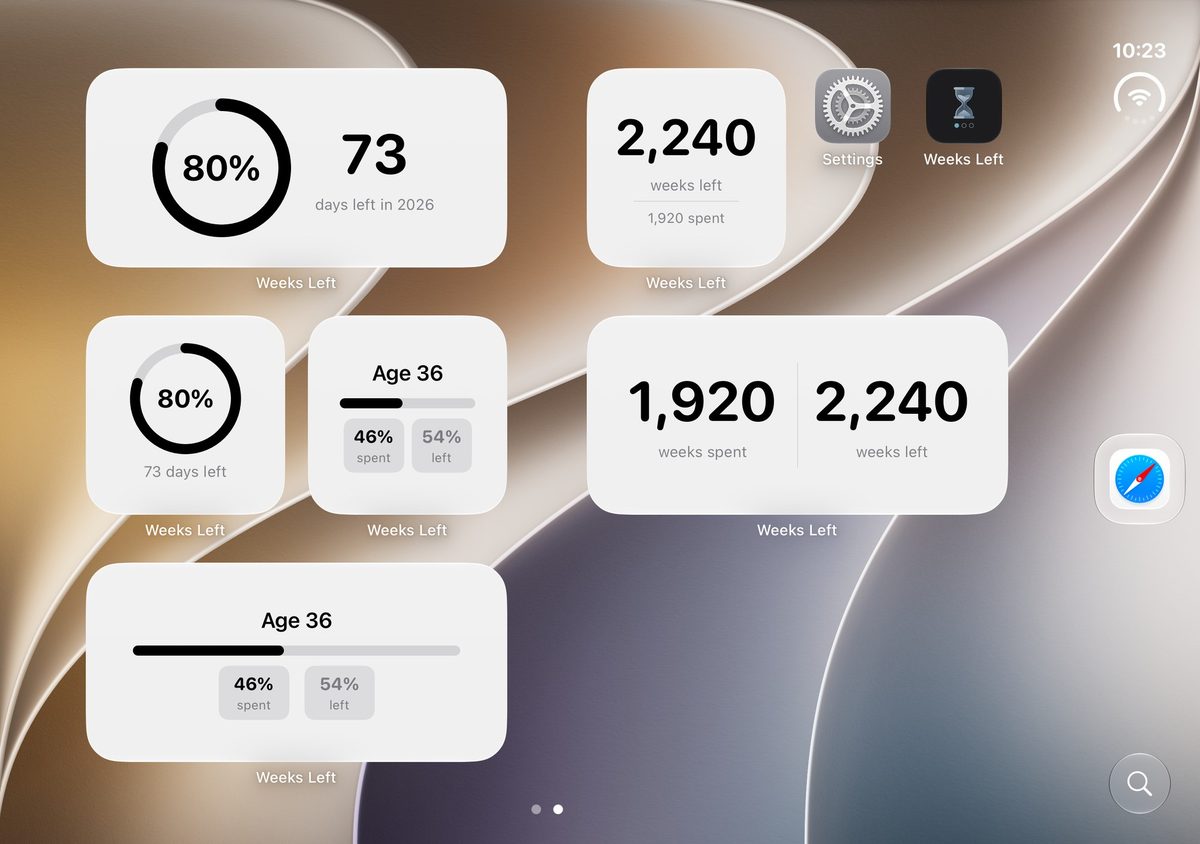
The Home Screen grid changes with the pose: two columns when closed, a wider grid when open, and in Book the widgets move to the right half. Check each widget size in each pose. Gallery previews are cached, so judge the widget after you place it.
Testing every pose
You need the new tools
The Duo simulator needs Xcode 27.1, the iOS 27.1 runtime, and macOS 26.6 or later. Xcode 26 has no Duo at all. I had to update macOS, install Xcode 27.1 (about 45 minutes), and accept the Xcode license myself before anything could run.
Only Device Hub can fold the phone
simctl has no fold command, XCUITest has no fold API, and setting XCUIDevice.shared.orientation does nothing on the Duo. The only way to change poses is the Closed, Partially Open, Open and Rotate Right buttons in Xcode’s Device Hub. At first Claude asked me to press them. I asked if it could do that itself, and it could, once I gave it macOS Accessibility permission. It then pressed the buttons by name with a small Swift script.
Rotate Right sometimes seemed to do nothing. It cycles through four orientations, and one of them is upside-down portrait, which iPhone apps ignore. Four presses bring you back to the start.
Screenshots came back black
simctl io screenshot captures the inner display, which is off when the phone is closed. Screenshots taken inside XCUITest were black too. The fix was to list the displays, pick each one by its width, and capture both. The display IDs change on every launch, so the script looks them up each time. A UI test drives the app and writes a marker file when a screen is ready, and a script on the Mac takes the screenshots.
Give each project its own simulator
Both sessions used the default “iPhone Duo” simulator at the same time. One of them rebooted it while the other was testing an app on it. Now each project creates its own Duo simulator and passes its ID to every command.
Most of the waiting was on me
Several steps sat until I installed something, accepted a license, approved simulator access or granted Accessibility. Once setup was done, the layout changes for one app took about an hour.
Building and shipping
Two things broke after the upgrade to Xcode 27.1:
- RevenueCat stopped compiling. Older 5.x versions fail with
invalid redeclaration of synthesized memberwise 'init(stringRepresentation:)'. Version 5.96.0 builds. Changing the version range wasn’t enough, becausePackage.resolvedand the cached checkout kept the old version. - Xcode Cloud’s “Latest Release” can still mean Xcode 27.0. A build from 27.0 resizes on the Duo but doesn’t get the vertical rail. Pin Xcode 27.1 in the workflow.
The skill
Every trap above cost time once. At the end of each session, I asked Claude to write what it learned into a skill: the pose sizes, the layout fixes, the build errors, and the scripts that press Device Hub’s buttons and capture both displays. It’s in my public agent-skills repo as support-iphone-duo.
To add it to Claude Code:
claude plugin marketplace add tonybach/agent-skills
claude plugin install agent-skills@tonybach-skills
After that, asking Claude Code to make your app work on iPhone Duo loads the skill. The repo also has skills for publishing to the App Store and Google Play, written the same way.